ESPN connection help
Find your SWID and espn_s2.
A walkthrough for connecting a private ESPN league to Football Technology.
← Back to your secure connectionUse Chrome on a computer for this step. You’ll copy two session values from your signed-in ESPN tab, then paste them into Football Technology. Your phone can use the dashboard after the connection is saved.
These values can grant access to your ESPN session. Paste them only into the secure connection fields—never into chat, email, or a screenshot you share.
Open your team in ESPN
Sign in at ESPN Fantasy Football ↗ and open My Team. Check that you can see the correct roster. Keep this tab open and copy its full address into our ESPN team-page link field.
Use the same Chrome profile and window for the rest of these steps. A login in Safari or the ESPN app won’t sign you in to Chrome.
Open Developer Tools, then Application
On the ESPN tab, right-click a blank part of the page and choose Inspect. Or use Chrome’s ⋮ menu → More tools → Developer tools.
Mac
⌘ Command + ⌥ Option + IWindows
Ctrl + Shift + ISelect Application along the top of Developer Tools. If it’s hidden, use the » overflow menu.
Still can’t find it? Click inside Developer Tools, press ⌘ + Shift + P on Mac or Ctrl + Shift + P on Windows, type Show Application, then press Enter.
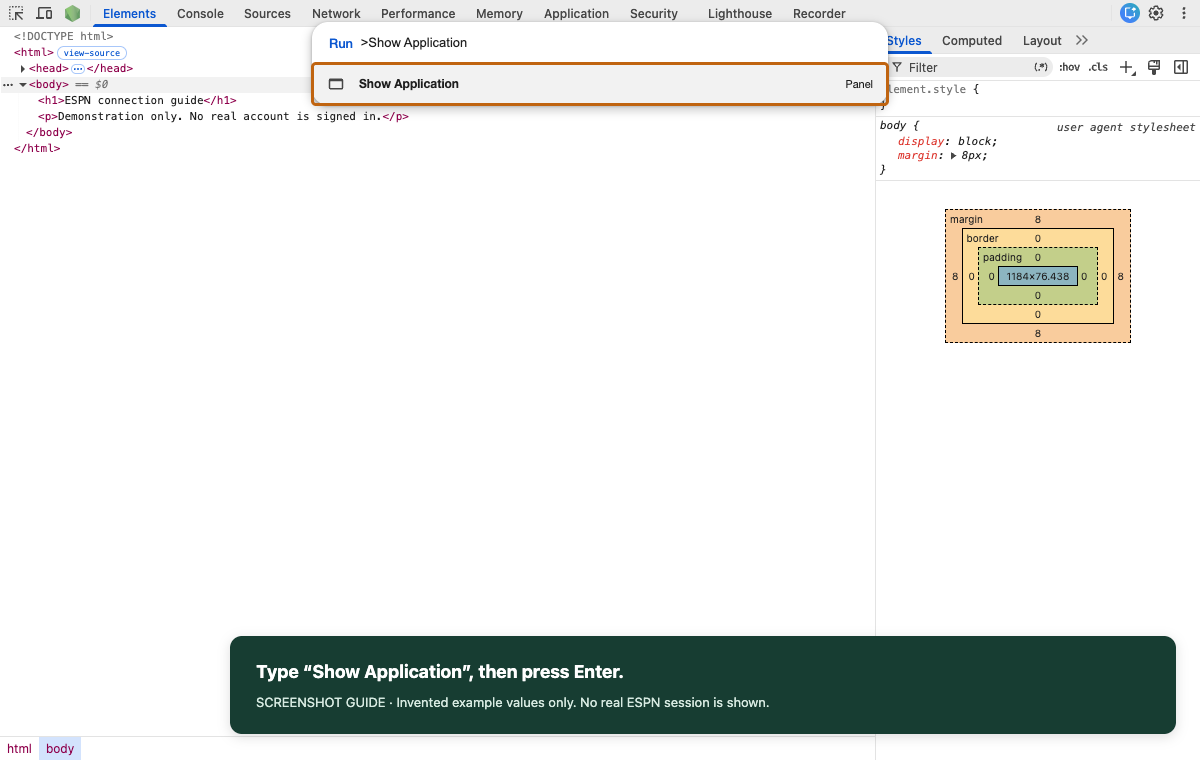
The command menu opens Application even when its tab is hidden. Enlarge screenshot ↗ Find the two ESPN cookies
In Application’s left sidebar, find Storage → Cookies. Click the small arrow beside Cookies, then select https://fantasy.espn.com. The table should show a Name and a Value column.
Use the table’s Filter box to find
SWID. After copying it, clear the filter and search forespn_s2. The cookie’s Domain column may say.espn.com; that’s expected.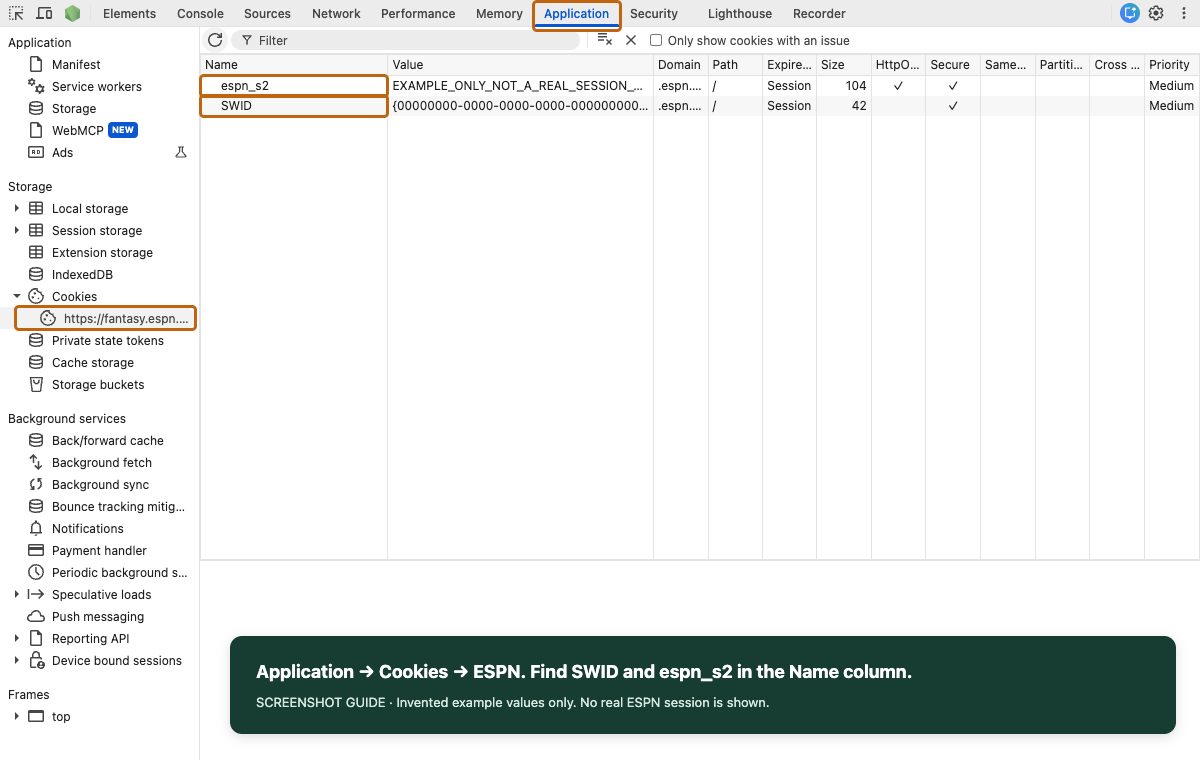
Select the ESPN site under Cookies—not Local storage or Session storage. Enlarge screenshot ↗ Copy each full value and connect
Find the
SWIDrow and double-click its cell in the Value column. Select the whole value and copy it: Mac: ⌘ A, then ⌘ C. Windows: Ctrl+A, then Ctrl+C. Press Esc to leave the cell without editing it. Return to Football Technology and paste into the SWID field. Repeat forespn_s2and its matching field.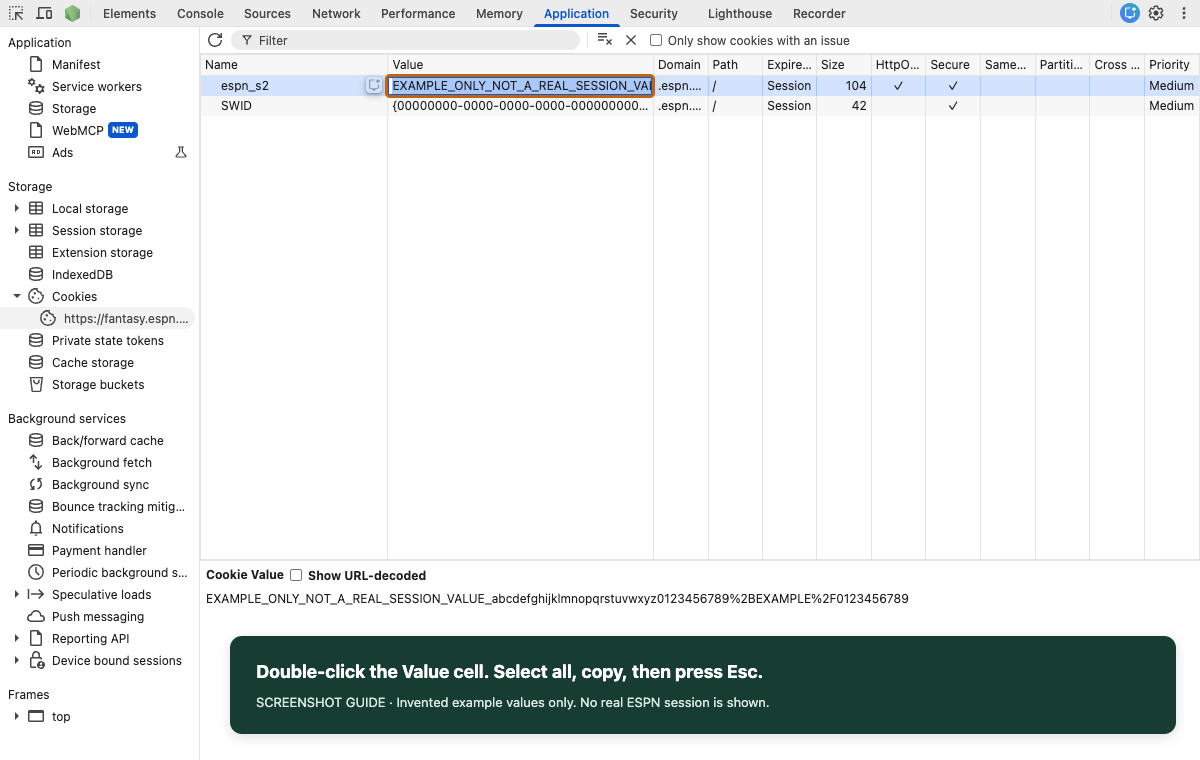
Select all inside the Value cell to copy the complete string, not just the visible portion. Enlarge screenshot ↗ - SWID: a short ID with hyphens, often inside
{braces}. Keep the braces if ESPN includes them. - espn_s2: a much longer string. Copy it exactly; don’t shorten it, add quotes, or turn on Show URL-decoded.
- Copy only the value, without
SWID=orespn_s2=. Don’t copy the examples in these screenshots.
Check the encrypted-storage consent box, then select Save secure connection. You should see your team’s name and a link to your recommendations.
- SWID: a short ID with hyphens, often inside
Stuck?
I can’t see Cookies, SWID, or espn_s2
Make sure Developer Tools belongs to your ESPN tab, not Football Technology. Open My Team after signing in, then refresh the ESPN page. Expand Cookies, select the ESPN site, and clear the Filter box. If the ESPN site is missing, reload the team page with Developer Tools open.
If a cookie is still missing, sign out of ESPN and back in using this same Chrome profile, open My Team, and check again. Copy both values from that new session.
The connection says “Unauthorized”
First confirm you can view that team in ESPN with the account you’re signed into. Recopy both full values from the same current session. Check the team link belongs to that account and that the two values aren’t swapped. Then retry the connection.
If Football Technology itself asks you to sign in, sign back into Football Technology first. If it still fails, contact Seth with the error text only—never the cookie values.
I’m on my phone, Safari, or another browser
These screenshots follow desktop Chrome. The easiest way through this pilot setup is to open Chrome on a Mac or Windows computer and sign into ESPN there. Once connected, return to Football Technology on your phone.
Will I have to do this every time?
No. We save the connection encrypted and reuse it when you refresh your team. ESPN can expire or revoke a session, so you may occasionally need to reconnect. You can disconnect and delete the saved session in Settings.
Screenshots show the real Chrome Developer Tools interface with invented example values. No real account or session is pictured. Chrome’s layout may vary by version.
Chrome help: Open Developer Tools · Find Application · View cookies